1. Import Flashcards via CSV: The Ultimate Guide
What is a CSV File?
What is a CSV File? 🤔
A CSV (Comma-Separated Values) file is a simple text file that stores table data, just like a spreadsheet. We use it to let you import hundreds of Flashcards at once! It's the standard way to quickly move large amounts of data into different apps.
Pro Tip: How to Create a CSV
Pro Tip: The easiest way to create a CSV is by using a spreadsheet app like Microsoft Excel, Google Sheets, or Apple Numbers. Organize your data into columns, and when saving, choose the "Comma Separated Values (.csv)" file type.
Function Overview & Limitation
Quickly and efficiently add multiple Flashcards to your Deck. This is perfect for large vocabulary lists or pre-existing study data.
Important Note: CSV import currently only supports Text data (for Text-to-Speech). Audio data cannot be imported via CSV.
2. Technical Requirements for a Perfect Import
A Quick Tip Before You Start: While the following requirements may look technical, if you are using a standard spreadsheet application (like Excel,Google Sheets or Numbers) and selecting the .csv file type, most of these rules will be handled automatically for you!
- * Encoding is Key: Your file must be encoded in UTF-8. This ensures special characters (e.g., Japanese, accents) import without errors. Check this setting when saving your file.
- * Standard: The file should conform to the RFC 4180 standard.
- * Quotes and Commas: If a cell contains a comma (,), a double quote ("), or a new line, the entire cell must be enclosed in double quotes. Internal double quotes must be escaped using two double quotes ("").
If you see the "Cannot Read CSV File" alert, please verify your file against these technical specifications.
3. The Header Row (First Line)
The first line of your CSV file must be the header row. This tells the app what data is in each column. Order doesn't matter, but header names must be used exactly as shown below.
Mandatory Headers: The headers QText and AText are required. If they are missing, the import will fail with an "Invalid CSV Header" alert.
| Title | Optional The title of the card. If left blank, the app will assign a title automatically. |
|---|---|
| QText | Mandatory The Question Text to Speak data. This text will be read aloud by Text-to-Speech. Multi-line input is supported. |
| AText | Mandatory The Answer Text to Speak data. This text will be read aloud by Text-to-Speech. Multi-line input is supported. |
| QLanguage | Optional The BCP47 code for the Voice used to read the question (e.g., en-US, ja-JP). If this field is blank or contains an unsupported code, the app will automatically use the current device's default language setting for Text-to-Speech. |
| ALanguage | Optional The BCP47 code for the Voice used to read the answer. If this field is blank or contains an unsupported code, the app will automatically use the current device's default language setting for Text-to-Speech. |
| Star | Optional The Star Rating (1 to 5). Defaults to 3 if blank or invalid. |
| Check | Optional The Checkmark status. Use 1 for Checked and 0 for Unchecked. Defaults to 0. |
| Note | Optional The Notes text for the card. Multi-line input is supported. |
Quick Reference: Commonly Used Language Codes
For language learning, you'll need to specify the BCP47 code for the voice you want. Here are some of the most common codes used by our language-learning community. This is not an exhaustive list, but covers the most frequently studied languages.
Pro Tip: For a complete list of supported BCP47 codes, please refer to the official Apple or iOS documentation regarding Text-to-Speech (TTS) voices.
- U.S. English
- en-US
- U.K. English
- en-GB
- Mexican Spanish
- es-MX
- European Spanish
- es-ES
- French (France)
- fr-FR
- German
- de-DE
- Italian
- it-IT
- Japanese
- ja-JP
- Mandarin (China)
- zh-CN
- Korean
- ko-KR
4. Data Rows and Example
Every row after the header row represents one new Flashcard. Data in each column must be separated by a comma.
csv
Title,QText,AText,QLanguage,ALanguage,Star,Check,Note
Hello,Hello,Hola,en-US,es-MX,5,1,
Long Note,"Long question text that includes a comma, so it is quoted.","Answer with a ""quote"", which requires double quotes.",en-US,es-MX,3,0,"This demonstrates required quoting."
**Spanish Verb**,"¿Cómo estás?","Estoy bién.",es-MX,es-MX,,,"This card is blank for Star and Check, so they default to 3 and 0."
5. How to Import
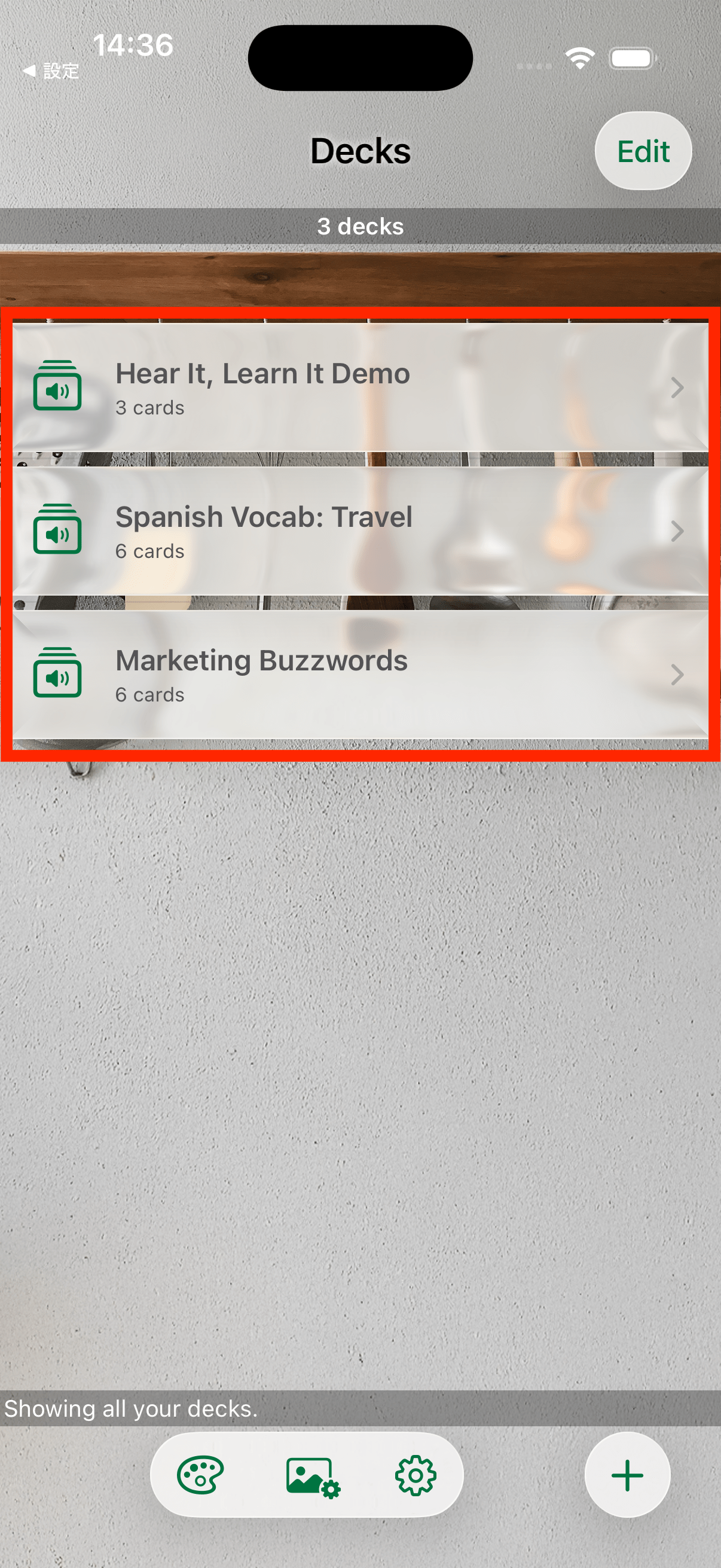
Step 1: Select Your Deck
Navigate to the Decks screen and tap the specific Deck where you want to import the new Flashcards.
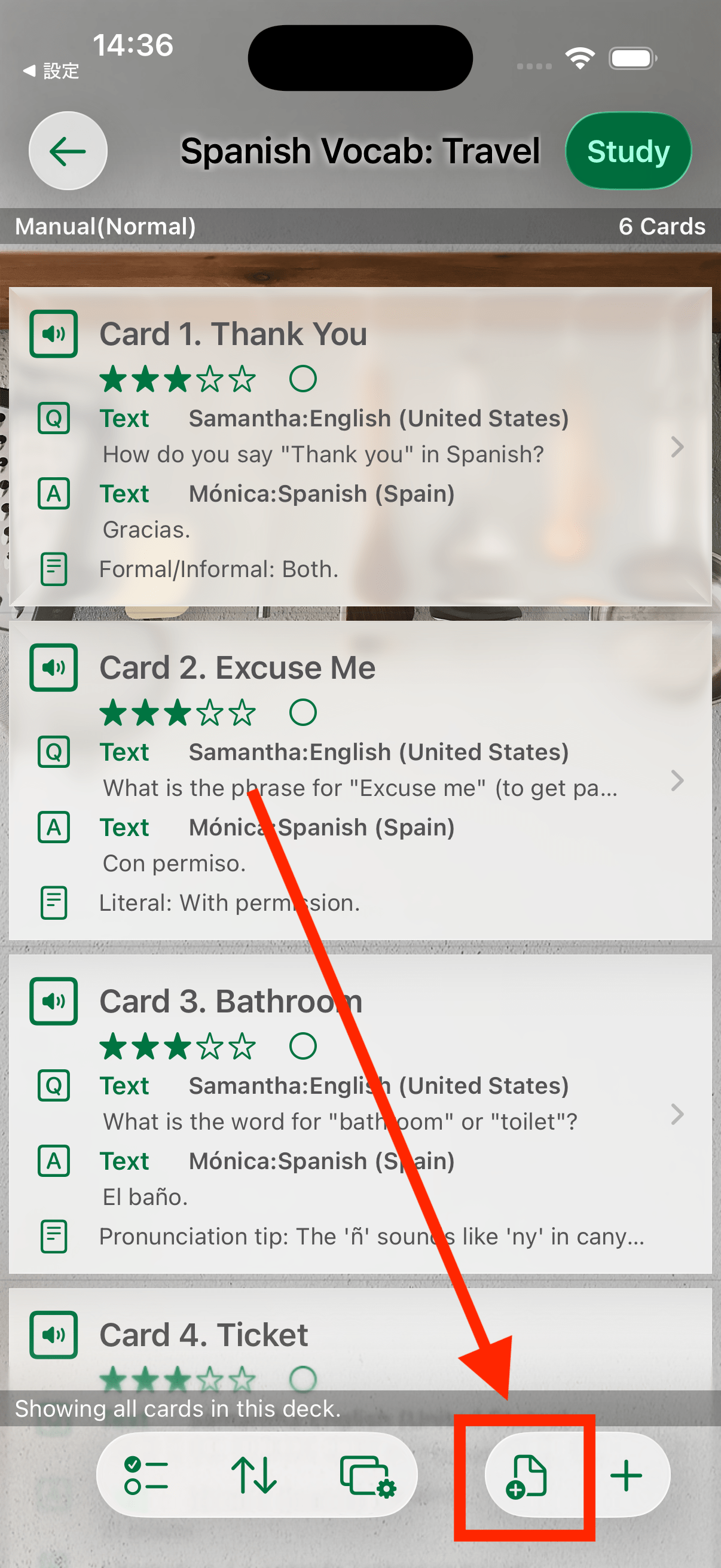
Step 2: Access Import Feature
From the Flashcard List screen within your selected Deck, tap the CSV Import button.
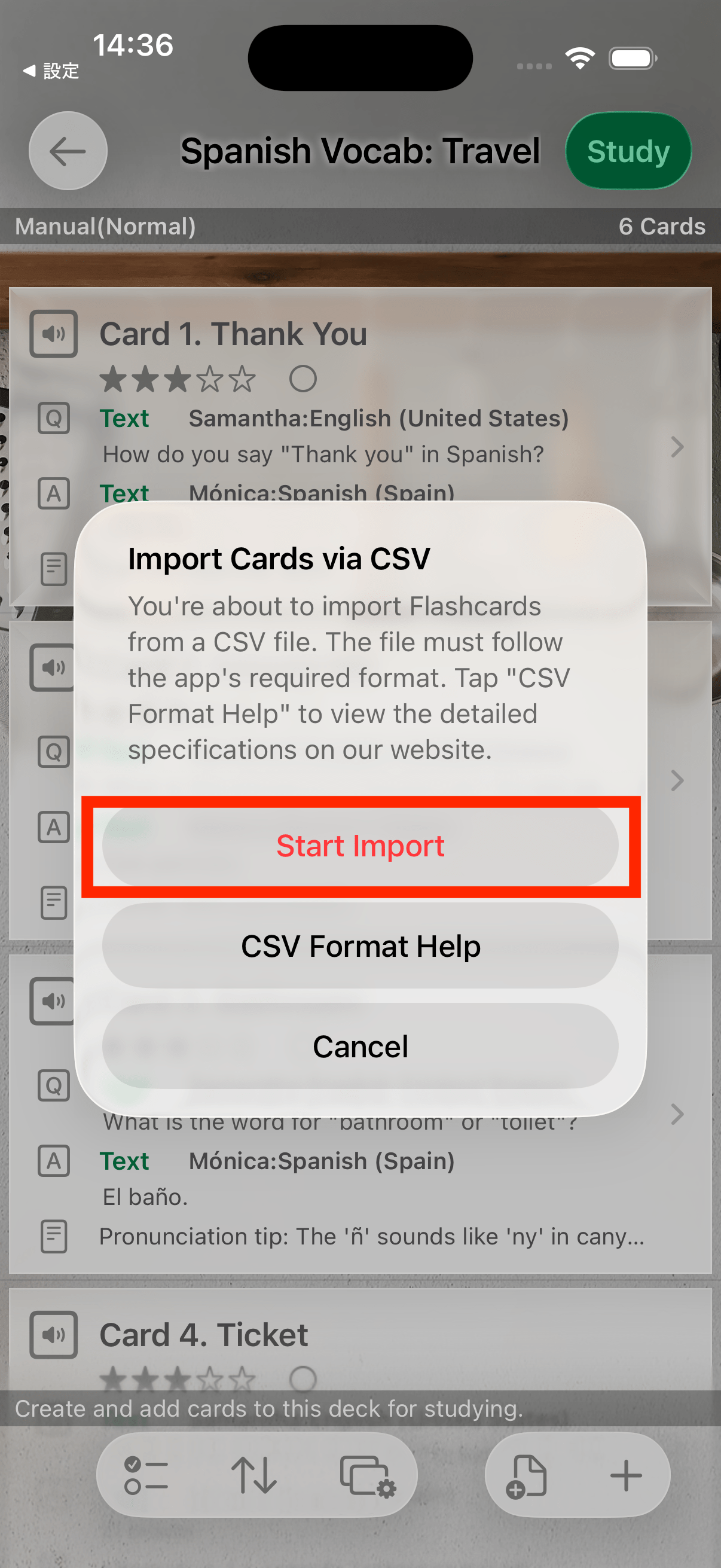
Step 3: Check Limits and Start
An alert will appear to confirm the import action.
IMPORTANT: If you are not a Premium user and the CSV file size exceeds your Flashcard Limit, the alert will display your current status and options (e.g., "Watch Ad to Expand" or "Go Premium"). Tap "Start Import" (or your chosen option) to confirm and proceed to file selection.
Step 4: Select Your CSV File
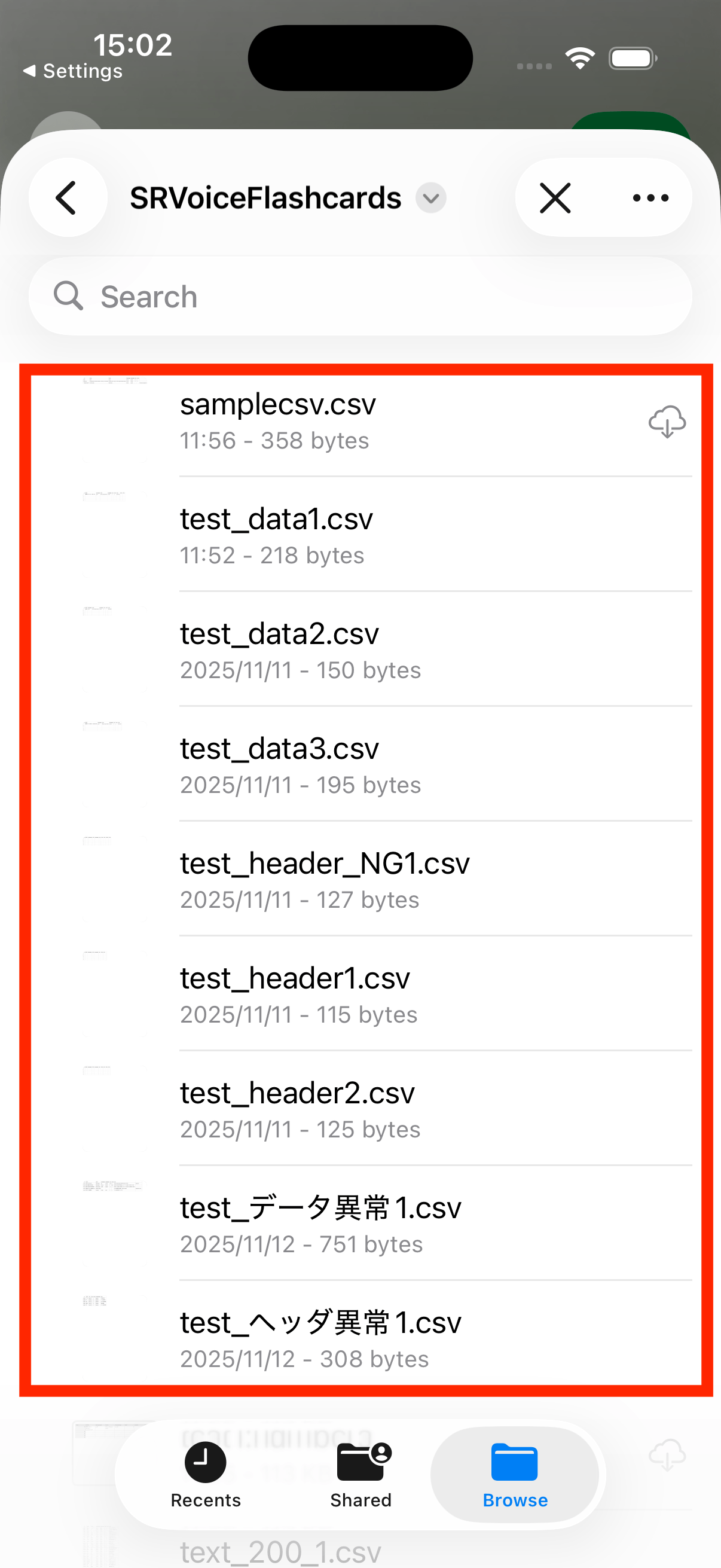
A system window will appear, allowing you to choose your prepared CSV file from your cloud storage (e.g., iCloud Drive, Dropbox). Tap the file to select it.
Step 5: Completion
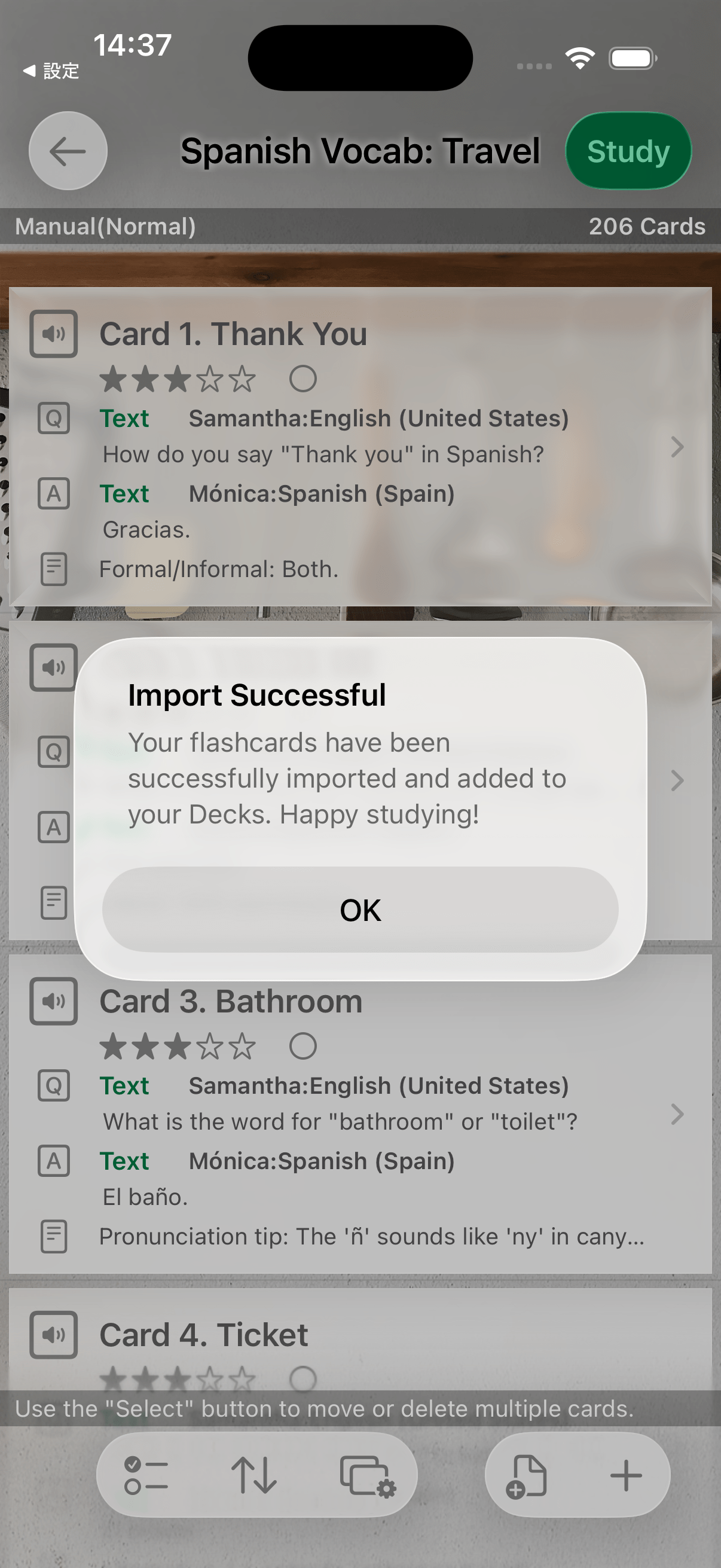
The app will process the data, create the new Flashcards, and they will appear in your selected Deck once the process is complete.